Enabling SAML will affect all users who use this application, which means that users will not be able to sign in through their regular log in page. They will only be able to access the app through the Okta service.
Backup URL
Panorays does not provide backup log-in URL where users can sign-in using their normal username and password. You can call Panorays Support (support@panorays.com) to turn off SAML, if necessary.
The Okta/Panorays SAML integration currently supports the following features:
For more information on the listed features, visit the Okta Glossary.
Contact the Panorays Support team (support@panorays.com) and request that they enable SAML 2.0 for your account.
Save, then attach the following file as Metadata file to your request:
Sign into the Okta Admin dashboard to generate this value.
The Panorays Support team will process your request. After receiving a confirmation email, you can start assigning people to the application.
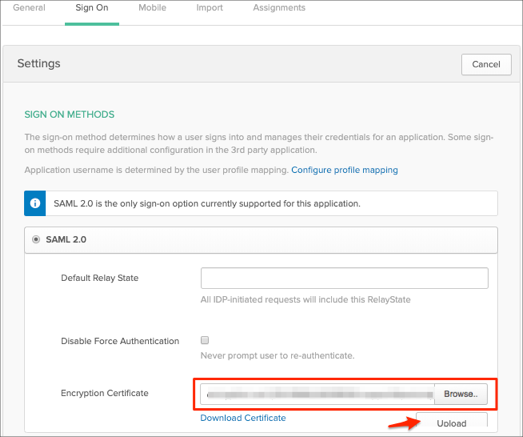
In Okta, select the Sign On tab for the Panorays SAML app, then click Edit:
Encryption Certificate: Save the following as encryption.cert, the locate and upload it to Okta:
-----BEGIN CERTIFICATE-----
MIIDljCCAn4CCQDLit43road9jANBgkqhkiG9w0BAQsFADCBjDELMAkGA1UEBhMC
SUwxEDAOBgNVBAgMB1RlbEF2aXYxETAPBgNVBAoMCFBhbm9yYXlzMRQwEgYDVQQL
DAtTU09QYW5vcmF5czEdMBsGA1UEAwwUYXV0aC5wYW5vcmF5c2FwcC5jb20xIzAh
BgkqhkiG9w0BCQEWFHN1cHBvcnRAcGFub3JheXMuY29tMB4XDTE5MDUxNTA3NDI1
M1oXDTI5MDMyMzA3NDI1M1owgYwxCzAJBgNVBAYTAklMMRAwDgYDVQQIDAdUZWxB
dml2MREwDwYDVQQKDAhQYW5vcmF5czEUMBIGA1UECwwLU1NPUGFub3JheXMxHTAb
BgNVBAMMFGF1dGgucGFub3JheXNhcHAuY29tMSMwIQYJKoZIhvcNAQkBFhRzdXBw
b3J0QHBhbm9yYXlzLmNvbTCCASIwDQYJKoZIhvcNAQEBBQADggEPADCCAQoCggEB
AJ6tx3tY8wCIjJbEqATN5+50/ukyNOhv+MjbQCEFbT1ehwEA0NcBZ7kkCVq/FmdE
Y/PrU30dInqJSLuGDclhpPoLxncT62YlXvRdt7z0CEmGIEgzPfNRHslLSLlWhMM/
SPS+phRvbL+jfg1g5tkl1kVpkkKavFDxj6xAocrux4q/qS3x6M4ITUdsv/vqSuCS
BX0qS6o3OsdIYrG9DTqLMjY6azc3Sx8WyU/1DkPXpmk5Y8PnKyo/gmVn4PpLqL6l
tljpXm3O+3mV19DeVlMSdTsS7z+lpuCIENzE025vNEBtsLgpRSk5meP2E+0R2U3P
WXov9Dks+ppi0//Gs6WEq6kCAwEAATANBgkqhkiG9w0BAQsFAAOCAQEAnUUnXA/n
L67TU+z2VLcc8l2RPibcLkeGdlDaQIVMDPvw9AHa1HtDLuZB0+dOYrQPBrbapJPr
mjP4ImSU3n6HKsmgO3vZ4jdyHe7L3aeSZC+eCmSIHn+/chZawWM1Nd5TvmNtx1Ad
tC2xMsst3W4Xg2jyn5/juTZwwthAvUWMBVHtmldmJwvq1yy0HIX/DrF43EFMx49v
yjEP/fdXWSMwfyoxXyJT3LJHiSixhtg1e8OP+uwS6BJ8lUOBRTztg3Qt2Av7SxYn
qqdLZkR01rztjtx3/XBvp9Sq8GExO+07jKg9UB3liprQ5nYA9GYIiYkBpkrM6BDU
G72UvnAhqZApSw==
-----END CERTIFICATE-----
Click Save:
Done!
The following SAML attributes are supported:
| Name | Value |
|---|---|
| firstName | user.firstName |
| lastName | user.lastName |
| user.userName |
Go to: https://www.panoraysapp.com
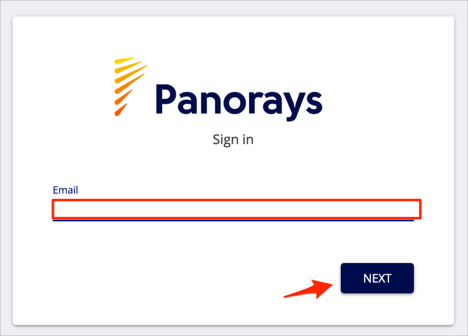
Enter your email, then click NEXT: