
The Okta/Genesys Cloud SAML integration currently supports the following features:
For more information on the listed features, visit the Okta Glossary.
Sign in to Genesys Cloud.
Go to Admin > Integrations > Single Sign-on.
Select Okta, then enter the following:
Okta Certificate: Save the following as okta.pem, then upload it.
Sign into the Okta Admin Dashboard to generate this variable.
Okta Issuer URI: Copy and paste the following:
Sign into the Okta Admin Dashboard to generate this variable.
Target URL: Copy and paste the following
Sign into the Okta Admin Dashboard to generate this variable.
Click Save.
In Okta, select the Sign On tab for the Genesys Cloud SAML app, then click Edit.
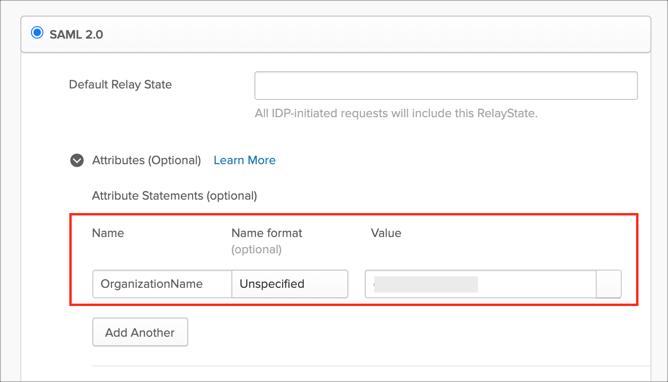
Select Attributes (Optional).
Under Attribute Statements (optional), add the following SAML attribute:
| Name | Name Format | Value |
|---|---|---|
| OrganizationName | Unspecified | Type your Short Name of your Genesys Cloud organization. If you don't know the short name of your organization, click Admin > Account Settings > Organization Settings in Genesys Cloud. |
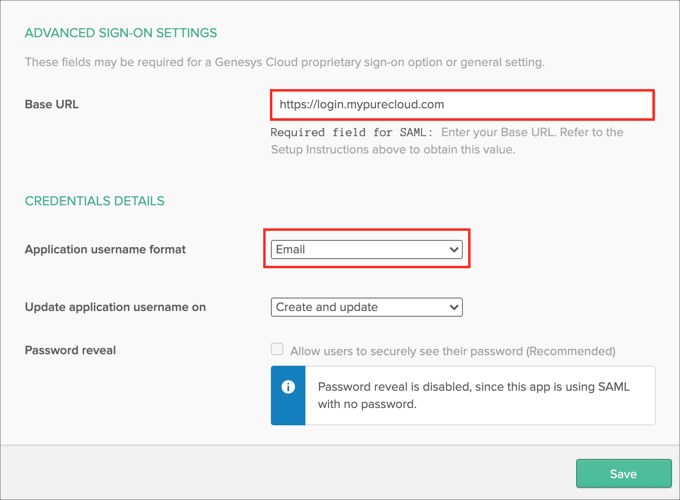
Scroll down to ADVANCED SIGN-ON SETTINGS.
Base URL: Enter the Base URL based on your AWS region below:
| AWS Region | Base URL |
|---|---|
| US East (N. Virginia) | https://login.mypurecloud.com |
| US West (Oregon) | https://login.usw2.pure.cloud |
| Canada (Canada Central) | https://login.cac1.pure.cloud |
| EU (Frankfurt) | https://login.mypurecloud.de |
| EU (Ireland) | https://login.mypurecloud.ie |
| EU (London) | https://login.euw2.pure.cloud |
| Asia Pacific (Seoul) | https://login.apne2.pure.cloud |
| Asia Pacific (Sydney) | https://login.mypurecloud.com.au |
| Asia Pacific (Tokyo) | https://login.mypurecloud.jp |
Application username format: Select Email.
Click Save.
Done!
Go to [your-BaseURL].
Select More Login Options.
Enter your Short Name of your Genesys Cloud organization, then click Next.
Click Okta.