Configure SAML 2.0 for SafetyCulture
This guide provides instructions on configuring SAML 2.0 Single Sign-On (SSO) for the SafetyCulture app.
Contents
Supported features
SafetyCulture supports the following features:
- SP-initiated SSO
- IdP-initiated SSO
- Just-In-Time (JIT) provisioning
Prerequisites
- Ensure that you have an Okta admin role with permission to manage apps.
- Ensure that you have owner-level permissions for the team to configure SAML SSO.
Integrate the app in Okta
Retrieve your SSO URL and SP entity ID from SafetyCulture
- Go to the SafetyCulture web app and sign in.
- Click your org name in the lower-left corner and select Organization settings.
- Select the Security tab.
- In the Single Sign-On (SSO) section, click Set up.
- Enter your team's email domains.
- Click Next.
- Click Set up to be redirected to the provider setup page.
- Click Get Started.
- Select Custom SAML.
- Click Next.
- Copy the Single Sign-On URL and Service Provider Entity ID.
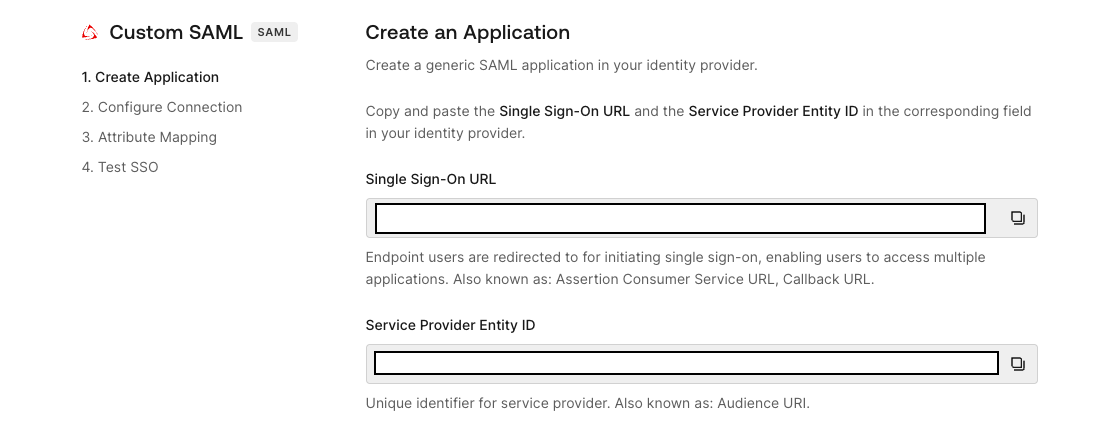
- Click Next.
Configure the app in Okta
- In the Admin Console, go to Applications and Resources > Applications (or Applications > Applications in Okta Classic Engine).
- Click Browse App Catalog.
- Search for and select the SafetyCulture app.
- Click Add Integration.
- On the General Settings tab, enter the Single Sign-On URL and the Service Provider Entity ID you retrieved from SafetyCulture.
- Click Done.
- On the Authentication tab, copy the Metadata URL.
If you're using Okta Classic Engine, the Authentication tab is called the Sign On tab.
Configure SAML in SafetyCulture
- Return to the SafetyCulture provider setup page and enter the Metadata URL you copied from Okta.
- Click Next.
- Click Create Connection, then click Proceed.
- Click Test Connection to verify the setup.
- Click Enable Connection.
- In SafetyCulture, click Okay on the confirmation dialog.
- Toggle on SSO Connection.
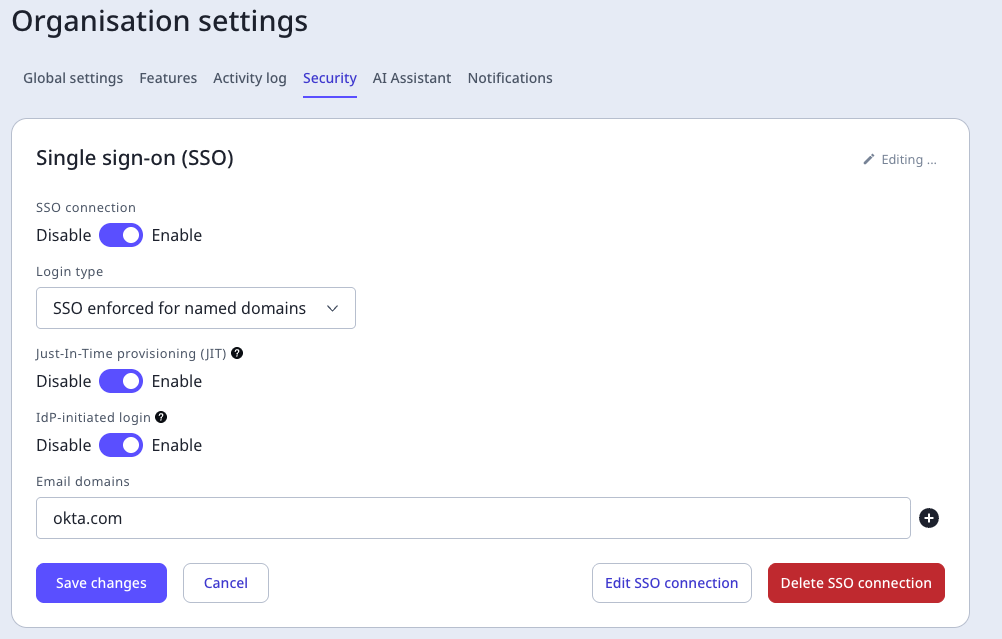
- Click Save changes.
Verify SP-initiated SSO
- Go to the SafetyCulture sign-in page. Enter the email address assigned to the SafetyCulture app in Okta and click Continue.
- Click Sign in with SSO. You're redirected to the sign-in page for your org.
- Enter your Okta credentials. You're signed in to SafetyCulture.
Supported SAML attributes
SafetyCulture supports these SAML attributes:
| Attribute |
Value |
| email |
user.email |
| firstname |
user.firstName |
| lastname |
user.lastName |