Configure SAML 2.0 for Bitwarden
This guide provides instructions on configuring SAML 2.0 Single Sign-On (SSO) for the Bitwarden app.
Contents
Supported features
Bitwarden supports the following feature:
Prerequisites
- Ensure that you have an Okta admin role with permission to manage apps.
- Ensure that you have admin access to your Bitwarden org.
- Retrieve your Connection ID from Bitwarden. Sign in to your Bitwarden account, click Admin Console, and go to Settings > Single Sign-On. Enter your verified domain in the SSO Identifier field. If you don't have a verified domain, go to the Claimed Domains section to verify one first. Select SAML 2.0 from the type dropdown and copy the value in the SP Entity ID field (for example,
https://sso.bitwarden.com/saml2/<Connection ID>).
Integrate the app in Okta
- In the Admin Console, go to Applications and Resources > Applications (or Applications > Applications in Okta Classic Engine).
- Click Browse App Catalog.
- Search for and select the Bitwarden app.
- Click Add Integration.
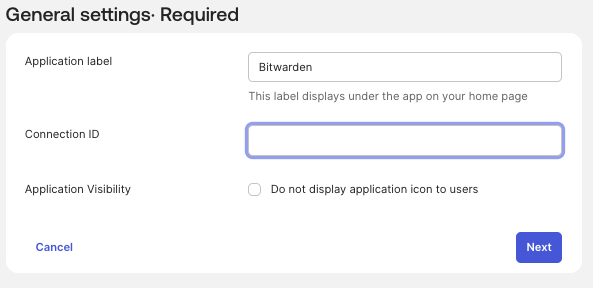
- On the General Settings tab, enter an Application label and the Connection ID you retrieved from Bitwarden. Click Done.
- On the Authentication tab, under Sign-on methods, select SAML 2.0.
If you're using Okta Classic Engine, the Authentication tab is called the Sign On tab.
- On the Assignments tab, click Assign > Assign to People (or Groups).
- Select the users who need access, click Save, and then click Go Back.
- On the Sign On tab, copy the following values and store them for later use:
- Identity Provider Issuer
- Identity Provider Single Sign-On URL
- X.509 Certificate
Configure SAML in Bitwarden
- In the Bitwarden Admin Console, go to Single Sign-On and select your SSO profile.
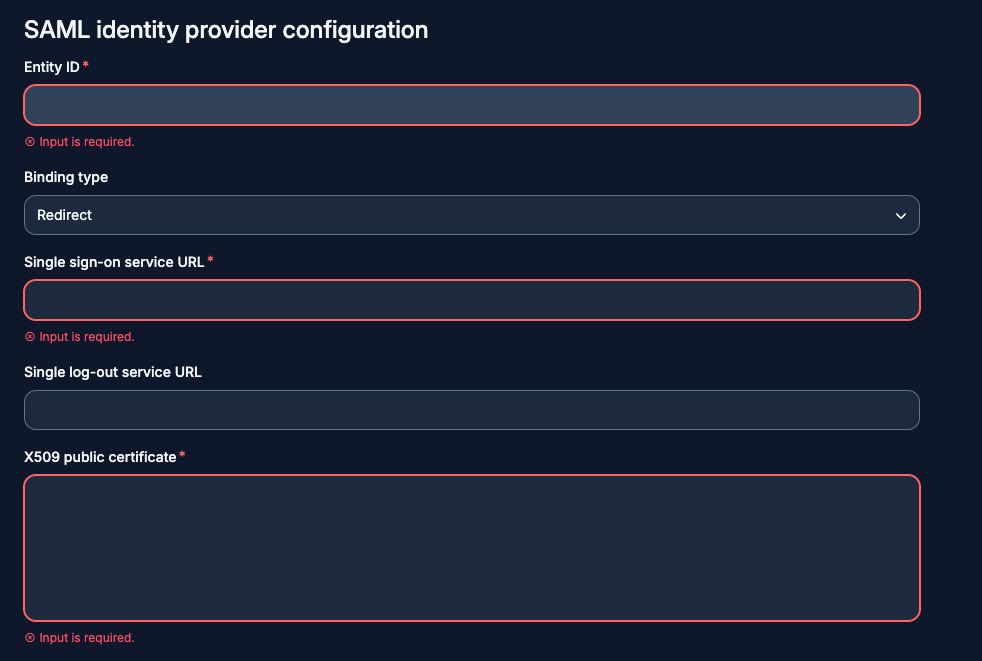
- In the SAML identity provider configuration section, click Enter Details Manually.
- Paste the Identity Provider Issuer, Identity Provider Single Sign-On URL, and X.509 Certificate that you copied from Okta.
- Click Save & Continue.
- Test the connection and select an existing domain or verify a new one.
- Ensure that the user is assigned in Bitwarden to enable SSO.
Verify SP-initiated SSO
Go to your Bitwarden sign-in page (for example, vault.bitwarden.com/#/login). Enter the email address that's assigned to the Bitwarden app in Okta. Click Use single sign-on. You're redirected to the sign-in page for your org. Enter your Okta credentials. You're signed in to Bitwarden.
Supported SAML attributes
Bitwarden supports these SAML attributes:
| Attribute |
Value |
| email |
user.email |
| firstname |
user.firstName |
| lastname |
user.lastName |
See Okta SAML 2.0.